
You can run a full Black Friday sale in WooCommerce without coupon codes, without editing a single product price, and without staying up at midnight to switch it on. This guide sets one up with a free plugin in about ten minutes.
WooCommerce’s own sale prices are set product by product. A discount rule covers the whole store, or any part of it, in one place. Your stored prices never change, so when the sale ends everything is back to normal on its own.
What you’ll set up
- A store-wide percentage off that starts on Black Friday and ends after Cyber Monday
- A bigger discount on larger orders, like 10% off orders over $100
- A message that nudges shoppers to buy a little more
Step 1: Install the plugin
- In WordPress, go to Plugins → Add New and search for Kayce Discount Rules.
- Click Install Now, then Activate. You can also download it from WordPress.org.
- Go to WooCommerce → Discount Rules.
Step 2: Create the sale
- Click Add rule and choose the Black Friday sale template. It starts as 25% off everything, with the dates filled in from Black Friday to Cyber Monday.
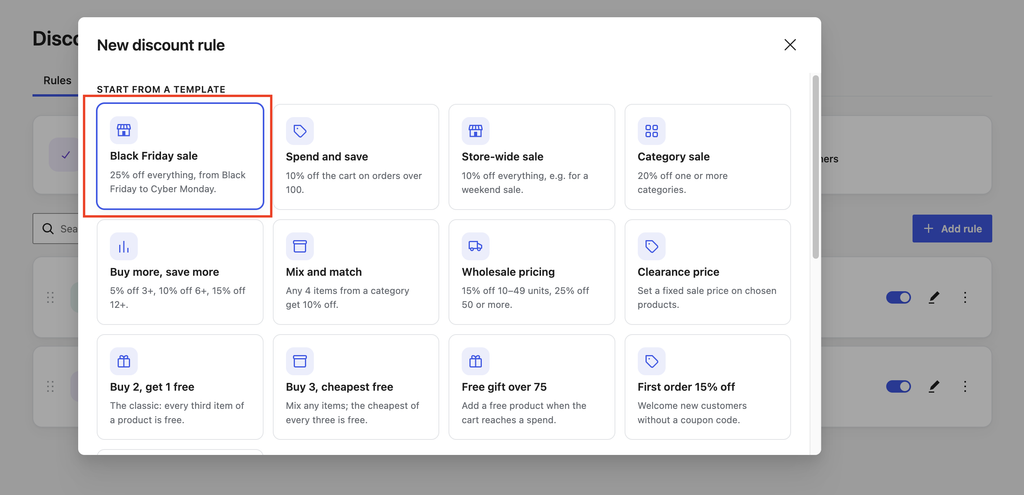
- Under Which products?, keep All products, or pick categories, tags or brands. Open Exclusions to leave out new arrivals or items you can’t discount.
- Under How much off?, set your percentage. The live preview on the right shows what shoppers will see.
- Under When?, check the dates. Times use your store’s timezone, set under Settings → General.
- Click Create rule. Nothing changes in your shop until the start date arrives.
Step 3: Reward bigger orders
A store-wide discount brings people in. A spending goal gets them to add one more item.
- Add another rule from the Spend and save template.
- Set the percentage and the minimum cart subtotal. To pick a minimum, look at your average order and aim about 20% above it.
- Give it a name shoppers will see in the cart, like “Black Friday bonus”.
- Add the same start and end dates under When?.
Below the minimum, the cart tells shoppers how close they are: “Spend $20 more to get 10% off your order”.
Step 4: Add quantity discounts (optional)
If people buy your products in multiples, use the Buy more, save more template. The product page shows a pricing table and “Add 2 more to get 15% off” as the quantity changes.
When two rules match the same product, the customer gets the lower price. Discounts don’t add up unless you choose that with Pro, so you won’t give away more than you planned.
Before the sale goes live
- Do the sums. Check your margin at the sale price on your best sellers, and exclude anything that would sell at a loss.
- Test it. Set the start date to today on a paused copy of the rule, turn it on, buy something in a test order, then set the date back.
- Check your cache. With full-page caching, product pages can show the old price for a short while after the sale starts. Clear the cache when it starts and ends. The cart and checkout always charge the right price.
- Tell people. Email your list before the sale starts, and again on the last day.
After the sale
The rules stop on their own. Open WooCommerce → Discount Rules to see how many orders each rule discounted and how much customers saved over the last 30 days. Keep the rules paused and change the dates next year.
Want more?
The free plugin covers everything above. Kayce Discount Rules Pro adds Buy X get Y deals, free gifts, offers for specific customer roles or first orders, and sales on chosen weekdays or hours.
Leave a Reply