WooCommerce lets you schedule a sale price, but only one product at a time. For a weekend sale across a category, or your whole store, that means a lot of editing and remembering to switch it back.
A scheduled discount rule does it in one place. You set the discount and the dates once, and it starts and stops on its own. Your stored prices never change, so there is nothing to undo afterwards.
Step 1: Install the plugin
- In WordPress, go to Plugins → Add New, search for Kayce Discount Rules, then click Install Now and Activate. You can also download it from WordPress.org.
- Go to WooCommerce → Discount Rules and click Add rule.
Step 2: Pick a template
- Store-wide sale: a percentage off everything
- Category sale: a discount on the categories you choose
- Black Friday sale: a store-wide sale with the Black Friday to Cyber Monday dates already filled in
Step 3: Set the discount and products
Under Which products?, keep all products or choose categories, tags or brands. Under How much off?, set a percentage off, an amount off each item, or a new price for each item. The live preview shows what shoppers will see.
Step 4: Set the dates
Under When?, enter the Starts and Ends date and time. Leave both empty to run the rule all the time.
Times use your store’s timezone, which you can check under Settings → General. A sale ending at 11:59 PM on Sunday ends at that time in your timezone, not your customers’.
Step 5: Create the rule
Click Create rule. Nothing changes in your shop until the start time arrives. When it does, shoppers see struck-through prices and sale badges, and the cart shows how much they save. At the end time, everything goes back to normal.
Ideas for scheduled sales
- A weekend sale from Friday evening to Sunday night
- A launch discount for the first week of a new collection
- Seasonal sales such as Black Friday, end of season or a store anniversary
- A clearance price on old stock that ends on a set date
For sales that repeat, such as every weekend or a daily happy hour, Kayce Discount Rules Pro adds weekday and time-of-day schedules.
Test before the start date
- Try a test copy: duplicate the rule, set its start date to today, check the shop in a private window, then delete the copy.
- Clear your cache: with full-page caching, product pages can show old prices for a short while after a sale starts or ends. The cart and checkout always use the right price.
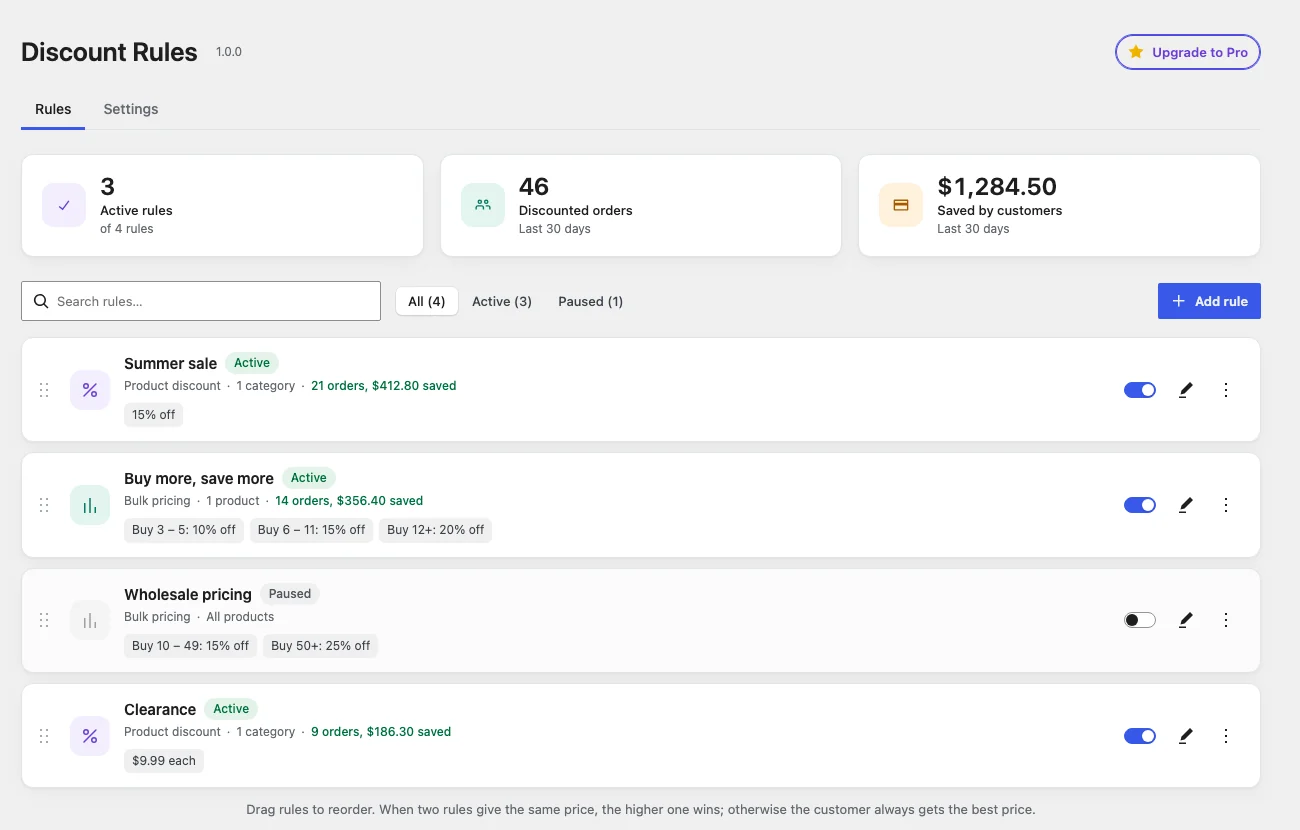
- Check the totals: after the sale, WooCommerce → Discount Rules shows how many orders each rule discounted and how much customers saved over the last 30 days.
Planning for November? Follow our step-by-step guide to a WooCommerce Black Friday sale.