Coupon codes work, but many shoppers never find them or forget to use them. A bulk discount that applies automatically is easier: the lower price shows in the shop and the cart, and nobody has to type anything.
This guide covers three kinds of bulk discount you can set up for free with Kayce Discount Rules:
- Mix and match: any 4 items from a category get 10% off
- Wholesale quantities: 15% off 10 or more of a product, 25% off 50 or more
- Order discount: 10% off orders over $100
First, install the plugin
- In WordPress, go to Plugins → Add New, search for Kayce Discount Rules, then click Install Now and Activate. You can also download it from WordPress.org.
- Go to WooCommerce → Discount Rules and click Add rule.
1. Mix and match across a category
Mix and match counts every matching item together, so a shopper can combine different products to reach the discount. It suits things people buy in sets, such as candles, socks, wine or coffee.
- Choose the Mix and match template. It starts at 10% off when the cart has 4 or more items from your chosen categories.
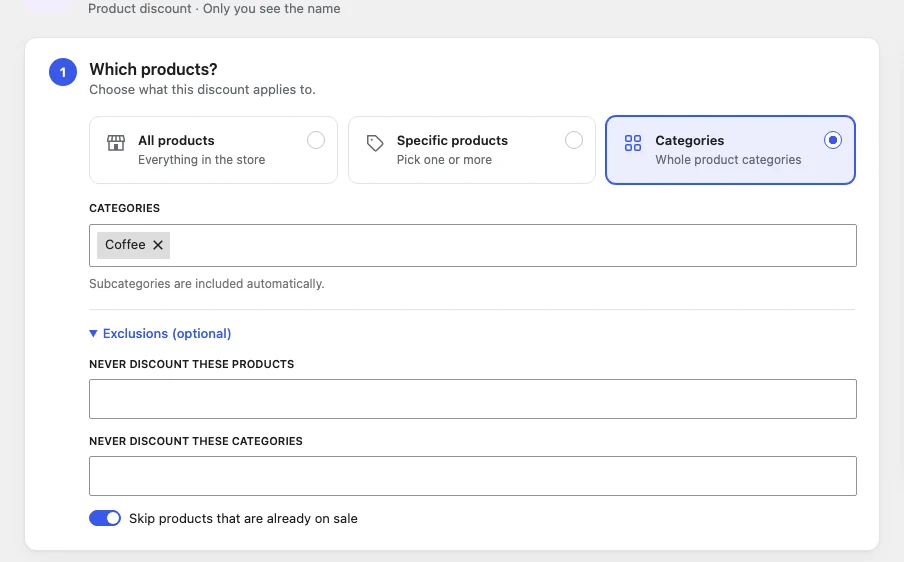
- Under Which products?, pick the categories that count towards the deal.
- Under How much off?, keep Mix and match as the count and adjust the tiers. Add a second tier, such as 15% off 8 or more, if you like.
- Click Create rule.
Shoppers see the discount on each matching item once they reach the quantity, and the cart tells them how many more to add.
2. Wholesale quantities
For larger orders of the same product, choose the Wholesale pricing template. It starts with these tiers:
| Quantity of one product | Discount |
|---|---|
| 10–49 | 15% off |
| 50 or more | 25% off |
Set the count to Per product so each product’s quantity counts on its own, or Per variation to count each size or colour separately. The product page shows the tiers in a pricing table.
The free plugin offers these prices to every shopper. To limit them to a wholesale customer role, use the user role condition in Pro.
3. A discount on bigger orders
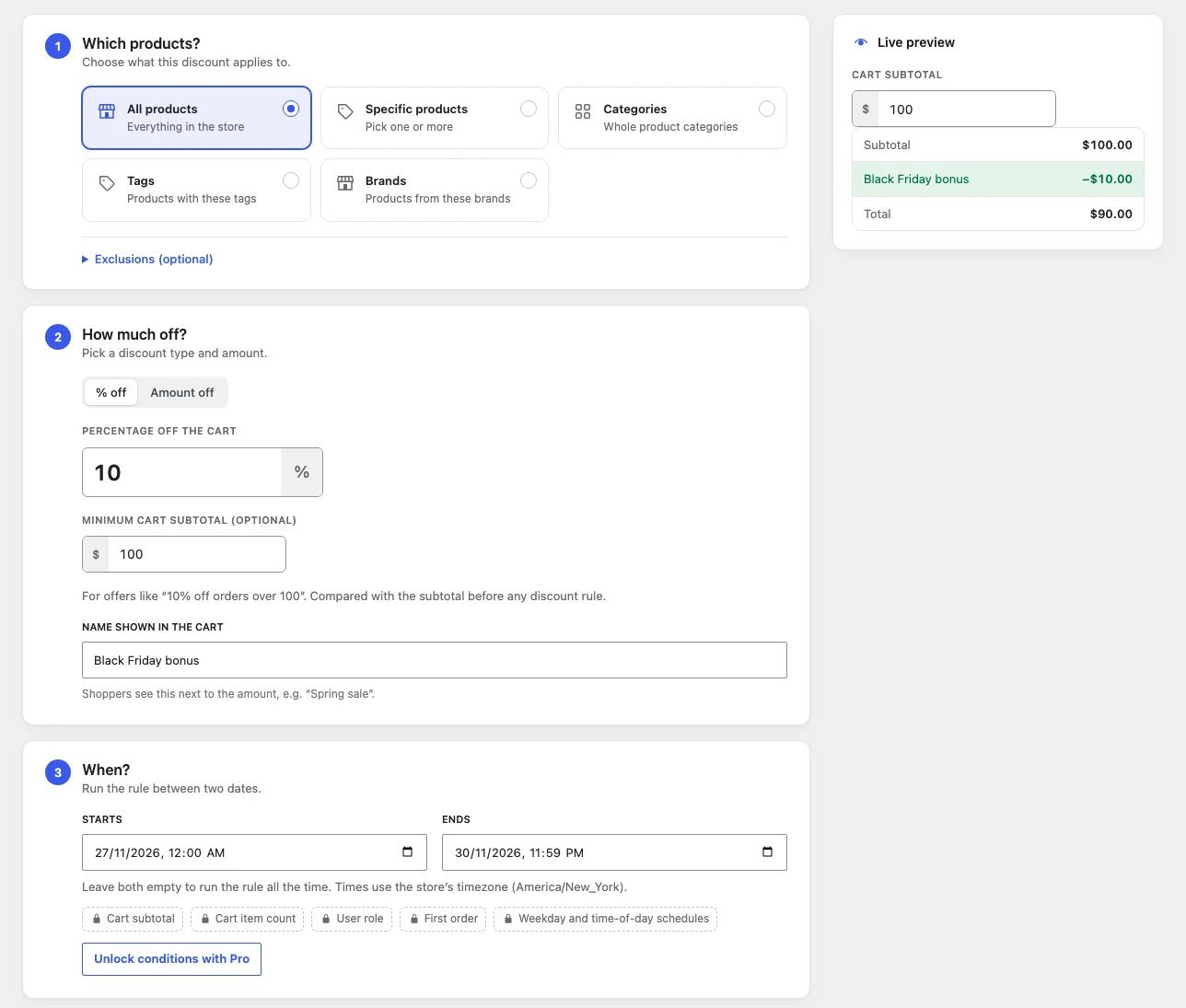
Sometimes you care about the order total, not the number of items. Choose the Spend and save template and set a percentage and a minimum cart subtotal, such as 10% off orders over $100.
The discount shows as its own line in the cart and checkout. Below the minimum, the cart shows a message such as “Spend $20 more to get 10% off your order”. The cart discount docs cover the details.
How the rules work together
You can run all three at once. When two product rules match the same item, the shopper gets the better price, so discounts don’t stack by accident. Drag the rules to reorder them, or pause one with a click.
Before you go live
- Check your margins at the highest discount.
- Test it with a few products in the cart, in a private browser window.
- Tell shoppers about the deal on the category page or in a banner, so they know to add more.
For quantity tiers on a single product, see our guide to tiered pricing in WooCommerce.