Tiered pricing gives shoppers a lower price per item when they buy more. It’s one of the simplest ways to raise your average order, and shoppers understand it at a glance.
WooCommerce doesn’t include quantity-based pricing on its own. This guide adds it with a free plugin, Kayce Discount Rules, in about five minutes and without coupon codes.
What tiered pricing looks like
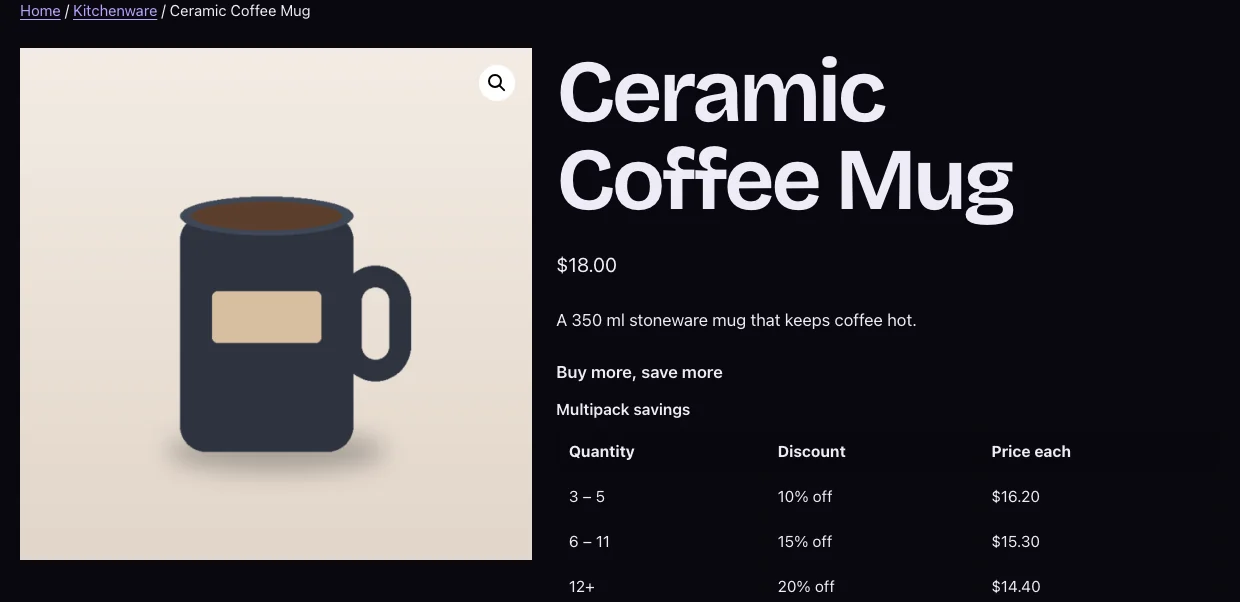
Here is the example we’ll set up, for an $18 coffee mug:
| Quantity | Discount | Price each |
|---|---|---|
| 1–2 | Full price | $18.00 |
| 3–5 | 10% off | $16.20 |
| 6–11 | 15% off | $15.30 |
| 12 or more | 20% off | $14.40 |
Shoppers see this table on the product page, with their current tier highlighted. As they change the quantity, a message such as “Add 2 more to get 15% off” tells them how close the next tier is.
Step 1: Install the plugin
- In WordPress, go to Plugins → Add New, search for Kayce Discount Rules, then click Install Now and Activate. You can also download it from WordPress.org.
- Go to WooCommerce → Discount Rules and click Add rule.
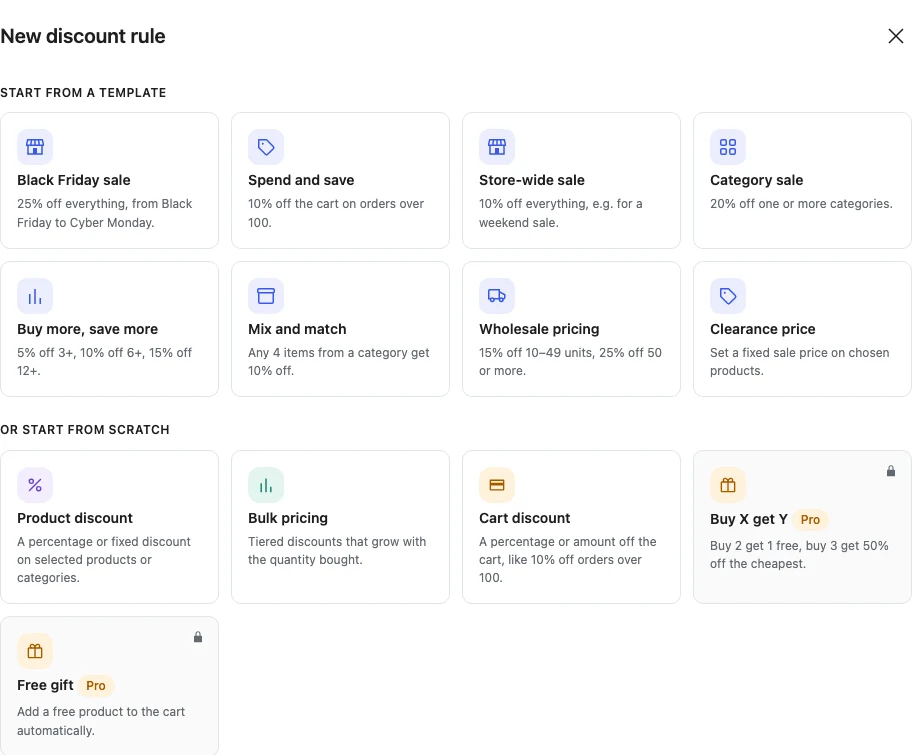
Step 2: Start from the “Buy more, save more” template
In the New discount rule window, choose Buy more, save more. It fills in three tiers, 5% off 3 or more, 10% off 6 or more and 15% off 12 or more, which you can change. This guide uses 10%, 15% and 20%.
Step 3: Choose the products
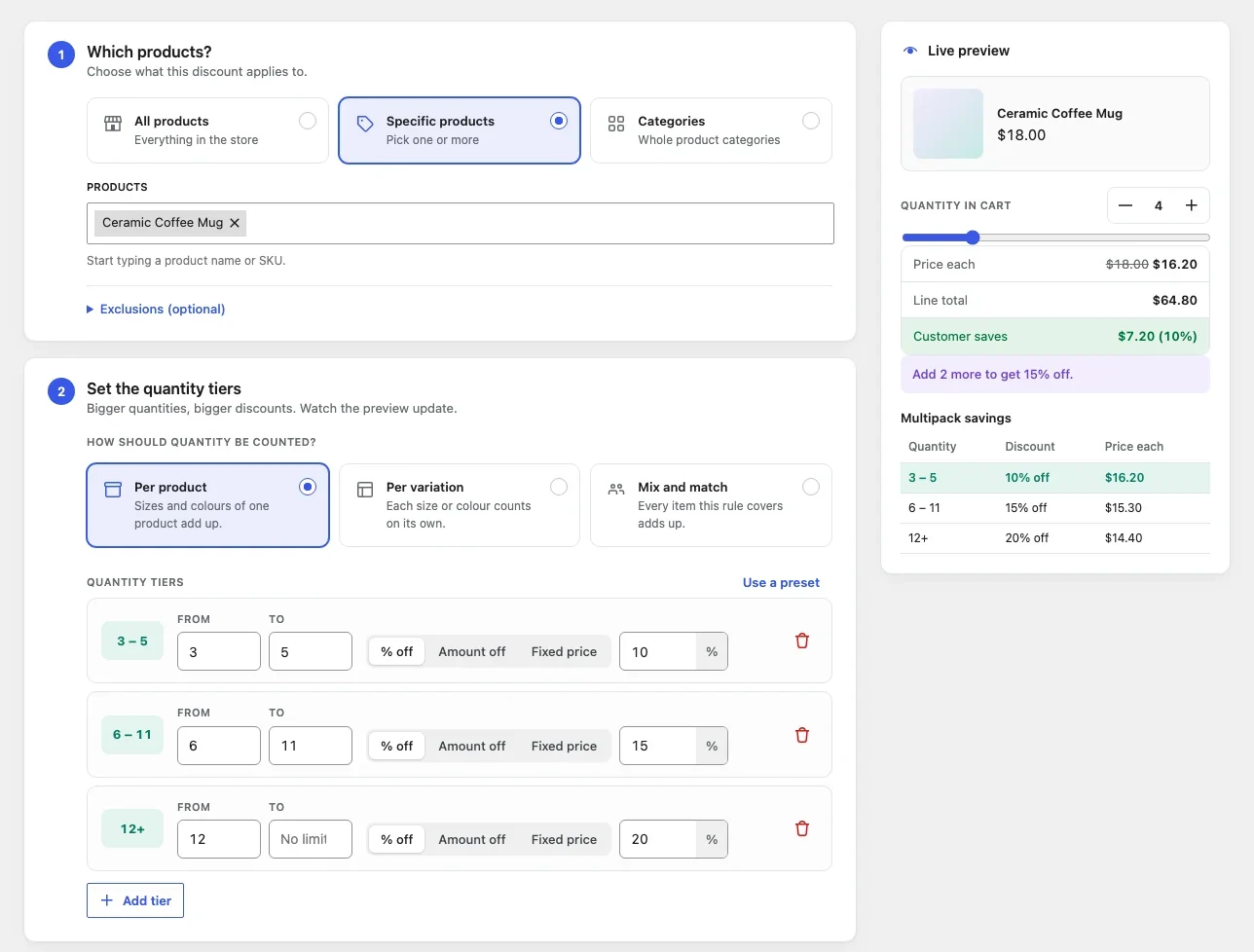
Under Which products?, pick All products, specific products, categories, tags or brands. Open Exclusions to leave out anything you can’t discount, or to skip products that are already on sale.
Step 4: Set your tiers
- Count: choose Per product so each product’s quantity counts on its own. For variable products, Per variation counts each size or colour separately. Mix and match counts every matching item together.
- Tiers: edit the quantities and discounts under Quantity tiers, or click Add tier. Leave the last tier open-ended so it covers every larger quantity.
- Presets: Use a preset fills in common patterns such as Pairs and packs (2+, 5+) and Wholesale (10+, 50+, 100+).
- Discount type: each tier can take a percentage off, an amount off each item, or a new price for each item.
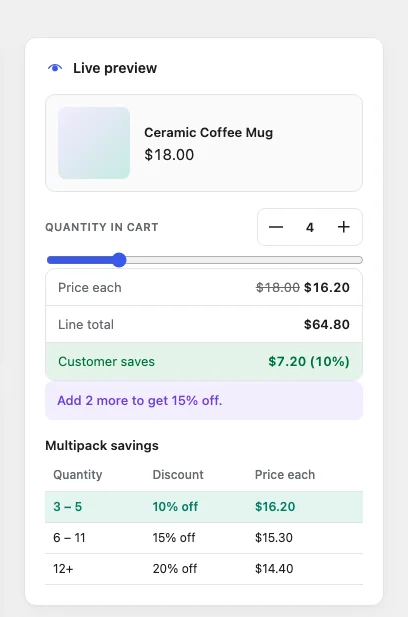
The Live preview beside the editor shows the price each, line total and saving for any quantity. Use it to check your tiers before saving.
Step 5: Create the rule and check your shop
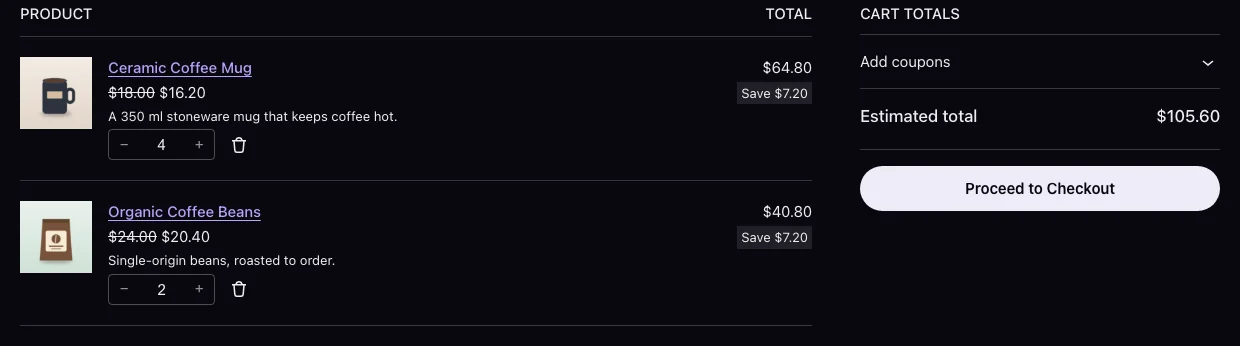
Click Create rule, then open one of the products in a new tab. You’ll see the pricing table and the struck-through price as the quantity changes. In the cart, each line shows its discounted price and a “You save” total.
On block themes, you can move the table with the Quantity Pricing Table block. On other themes, use the [kayce_discount_table] shortcode.
Tips for tiers that sell
- Start small: the first tier should be easy to reach, often 2 or 3 items.
- Make each step worth it: a jump from 5% to 10% is easier to notice than 5% to 6%.
- Check your margins: work out the price at your top tier and make sure you still earn enough.
- Watch for warnings: the editor flags overlapping tiers and gaps, such as a missing quantity between two tiers.
Common questions
What if two rules match the same product?
The shopper gets the better price. Discounts don’t add up, so you won’t give away more than you planned.
Can I offer tiered pricing to wholesale customers only?
The free plugin applies the tiers to everyone. Kayce Discount Rules Pro adds conditions such as user role, so you can limit tiers to wholesale customers.
Where can I learn more?
See the bulk pricing docs and the pricing table docs.