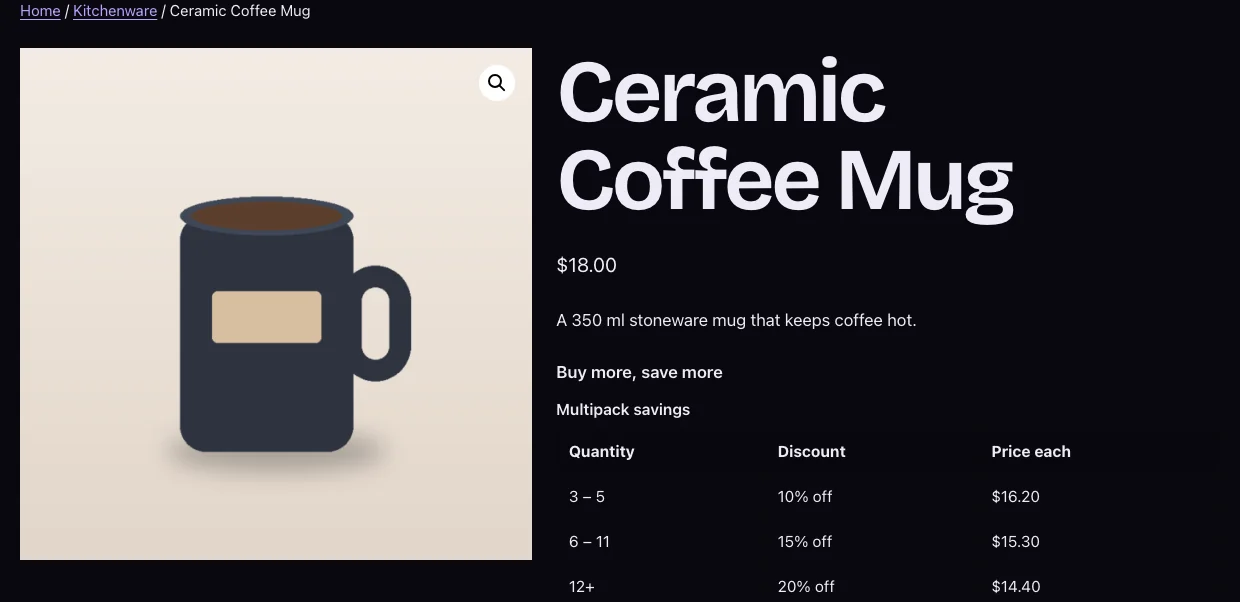
Automatic placement
Under Settings → Product page, choose where the table appears:
- Above the add to cart button (default)
- Below the add to cart button
- After the product summary
- Hidden (place it yourself with the block or shortcode)
Set the heading in Table heading (default “Buy more, save more”). Each bulk rule can also add its own caption above its table, set in step 4 of the editor.
Block
In block themes and the block editor, add the Quantity Pricing Table block (in the WooCommerce category). In a single product template it uses the product being viewed; anywhere else, enter a Product ID in the block settings. You can also override the heading there.
Shortcode
[kayce_discount_table]
[kayce_discount_table product="123"]
Without product the shortcode uses the current product.
Customising the template
Copy wp-content/plugins/kayce-discount-rules/templates/pricing-table.php to yourtheme/woocommerce/kayce-discount-rules/pricing-table.php and edit the copy. Your version survives plugin updates.
Styling
The table uses these CSS classes:
| Class | Element |
|---|---|
.kayce-dr-tables | Wrapper around all tables on the page |
.kayce-dr-tables__title | The heading |
.kayce-dr-table | Each table |
.kayce-dr-table tr.is-active | The row matching the quantity box |
When the table doesn’t show: It appears only on products that a bulk rule covers, when that rule is active and its conditions hold.