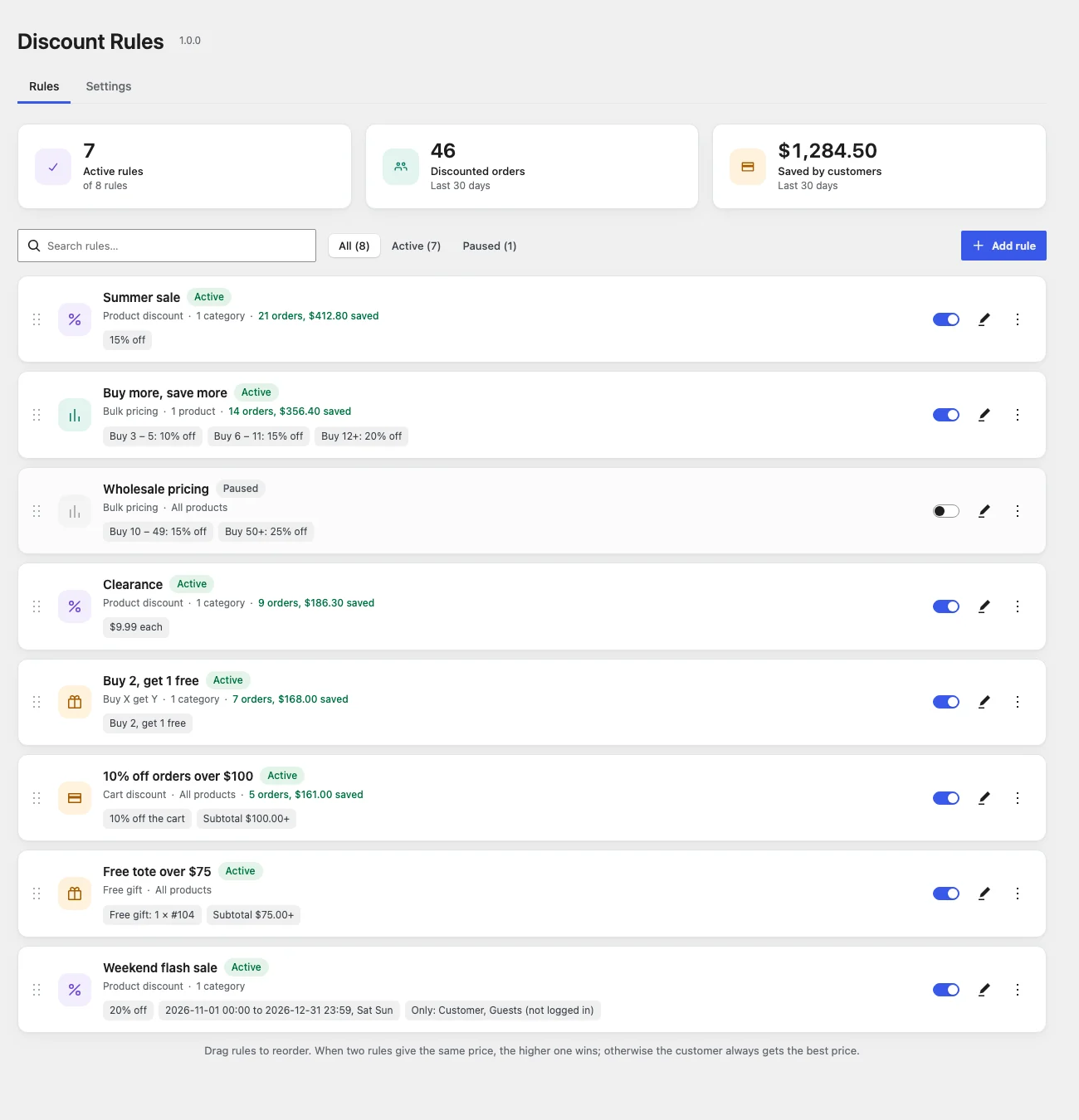
WooCommerce → Discount Rules lists every rule. Each card shows the rule name, its status, its type, what it applies to and a short summary of the discount.
Stats
The three tiles at the top show how many rules are active, how many paid orders were discounted in the last 30 days, and how much customers saved in total. Each rule card also shows its own orders and savings. Stats count paid orders (processing and completed) and update as new orders come in.
Status
| Label | Meaning |
|---|---|
| Active | The rule applies in your shop. |
| Paused | Saved but not applied. Turn it on with the switch. |
| Needs Pro | The rule uses a Pro rule type or condition and Pro isn’t active. It is kept but not applied. |
Search and filter
Type in Search rules to find rules by name or type. Use All / Active / Paused to filter by status.
Turn a rule on or off
Use the switch on the right of each card. The change is saved immediately.
Change the order
Drag a card by the handle on its left, or open the ⋮ menu and choose Move up or Move down. Order matters when two rules give a product the same price, and with Pro’s “highest rule wins” and “stack” modes. See When rules overlap.
Note: Dragging is turned off while you are searching or filtering, so the order you see is always the full order.
Duplicate a rule
Choose ⋮ → Duplicate. The copy appears below the original, named “(copy)” and paused, so you can edit it before switching it on.
Delete a rule
Choose ⋮ → Delete and confirm. Changed your mind? Click Undo in the message at the bottom of the screen. Orders that were already placed keep their prices.