Prices in the shop
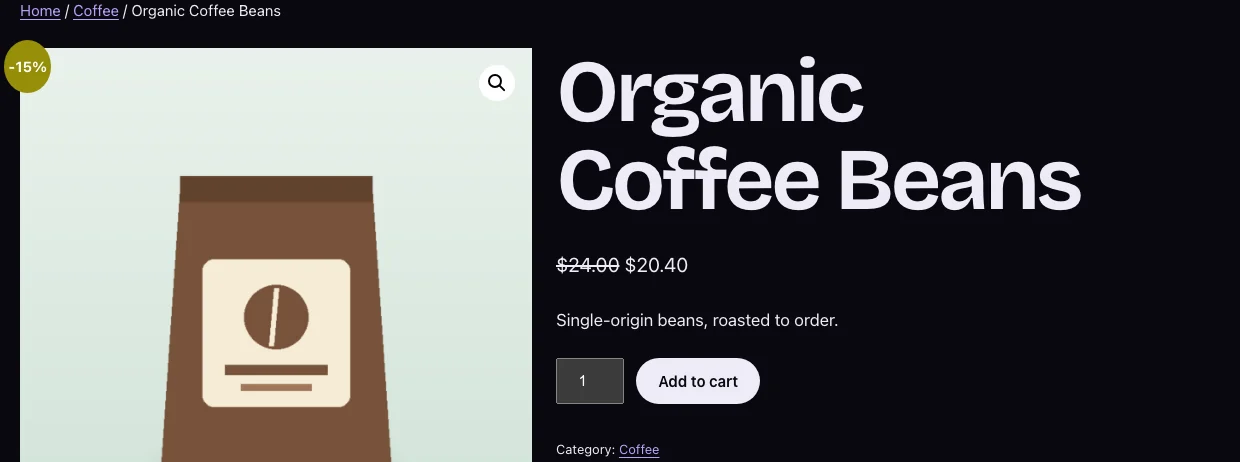
When a rule lowers a product’s price at a quantity of one, the shop and product pages show the original price struck through next to the new one. Variable products show the discounted price range.
Sale badges
Discounted products get your theme’s sale badge. Its text comes from Settings → Badge text: the default -{percent}% shows, for example, “-15%”. Turn badges off for one rule in step 4 of the editor, or for the whole store in Settings.
Note: Product grids built with WooCommerce blocks (such as Product Collection) show WooCommerce’s own “Sale” badge text rather than your custom text.
Quantity pricing table
Bulk rules show a table of tiers on the product page. The row for the quantity in the quantity box is highlighted as shoppers change it. See Quantity pricing table to move or restyle it.
Cart and checkout
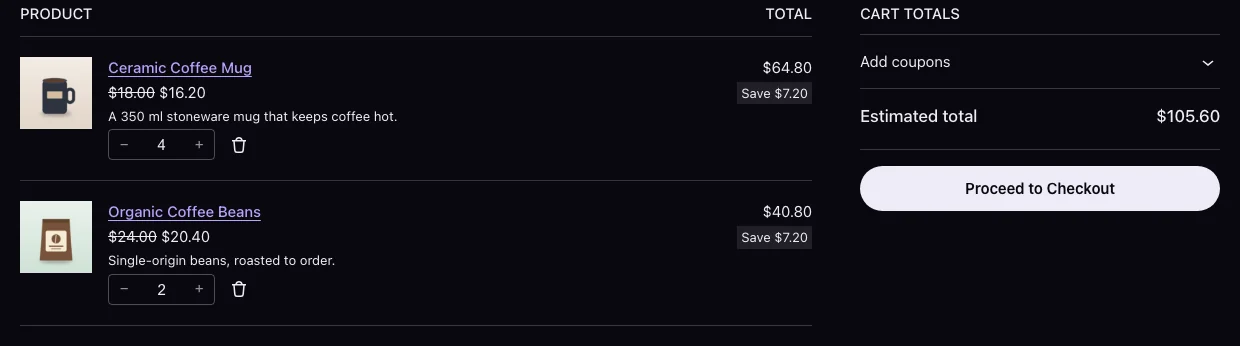
- Cart and Checkout blocks: discounted lines show the original price struck through and a “Save $…” label, added by WooCommerce itself.
- Classic cart: the unit price shows the original struck through (turn off under Settings).
- “You save” line: the classic cart and checkout totals get a “You save” row with the total saving (turn off under Settings).
Orders
Each discounted order line records which rule priced it and the original price. In WooCommerce → Orders you’ll see, under the item, “Discount rule: Summer sale (was $24.00 each)”. Customers don’t see this note.
Your product data
Product prices in your database are never changed. Feeds, the REST API and the product editor keep showing normal prices, and pausing a rule restores them at once.