Click Add rule to start from a template or a blank rule type, or click a rule’s name to edit it. The editor has four numbered steps and a live preview.
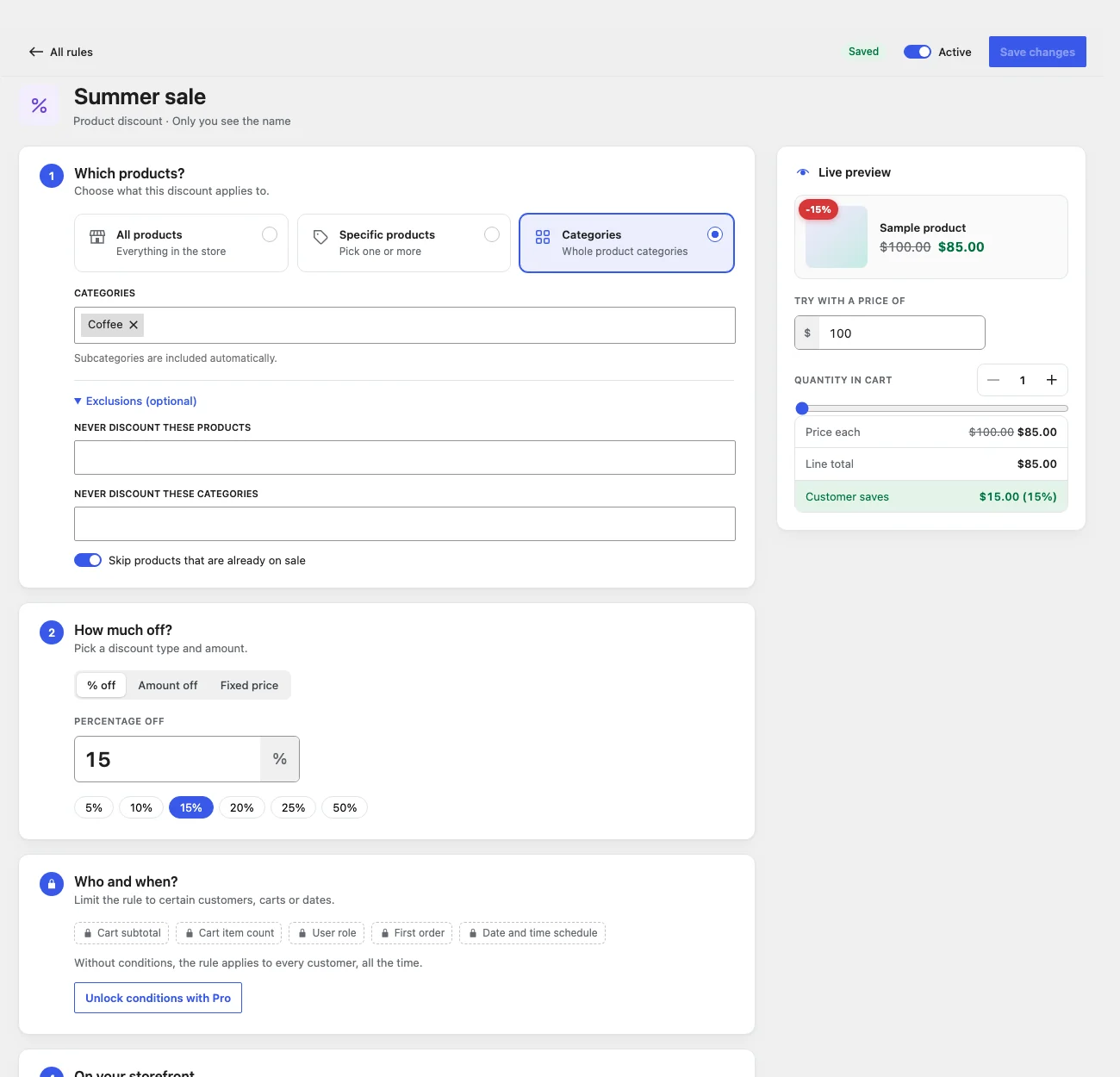
The top bar
- All rules: back to the list. If you have unsaved changes you are asked first.
- Saved / Unsaved changes: whether what you see is saved.
- Active: switch the rule on or off.
- Create rule / Save changes: save. The keyboard shortcut Ctrl/⌘ + S does the same.
The rule name under the top bar is for you only. Shoppers never see it, so name rules in whatever way helps you find them.
The four steps
| Step | What you set | Read more |
|---|---|---|
| 1. Which products? | All products, specific products or categories, plus exclusions. | Choosing products |
| 2. How much off? | The discount. Depends on the rule type. | Product discounts, Bulk pricing |
| 3. Who and when? | Pro conditions such as cart subtotal or a schedule. | Conditions |
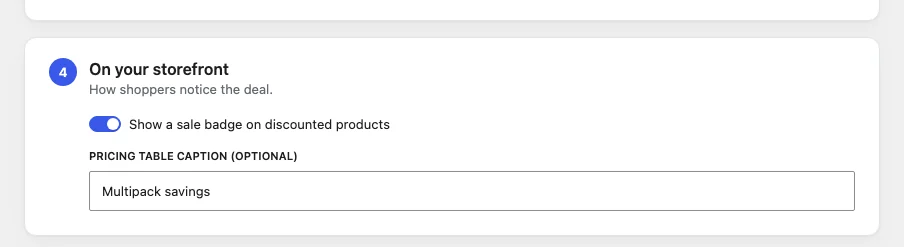
| 4. On your storefront | Sale badge on or off and, for bulk rules, the pricing table caption. | What shoppers see |
The live preview
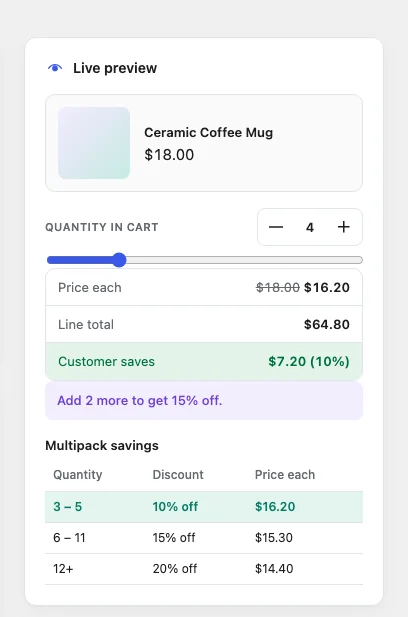
The preview shows what a shopper will see, using the price of the first product you picked (or a price you type in). Change the quantity with the − and + buttons or the slider to see:
- the product card with its badge and struck-through price,
- the price each, the line total and the customer’s saving,
- for bulk rules, the pricing table with the current tier highlighted and a nudge such as “Add 2 more to get 15% off.”
Note: The preview shows one rule on its own. If several rules match the same product, the shop applies them as described in When rules overlap.
Checks before saving
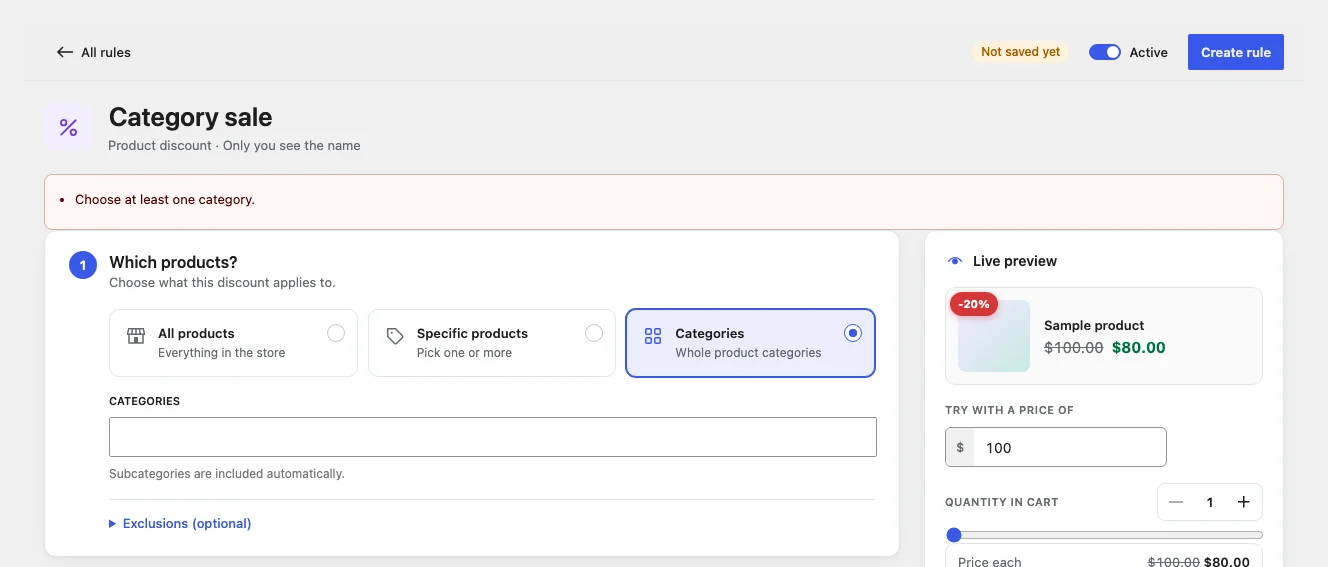
The editor won’t save a rule that can’t work, such as “Specific products” with no products chosen, or a percentage above 100. It lists what to fix at the top of the page.
Some things are allowed but probably not what you meant, such as overlapping tiers or a gap between tiers. They appear as amber warnings under the discount settings and don’t stop you saving.