In this walkthrough you will create a bulk discount, “buy 3 or more and save 5%, 6 or more to save 10%”, check it in the live preview, and see it in your shop.
1. Open Discount Rules
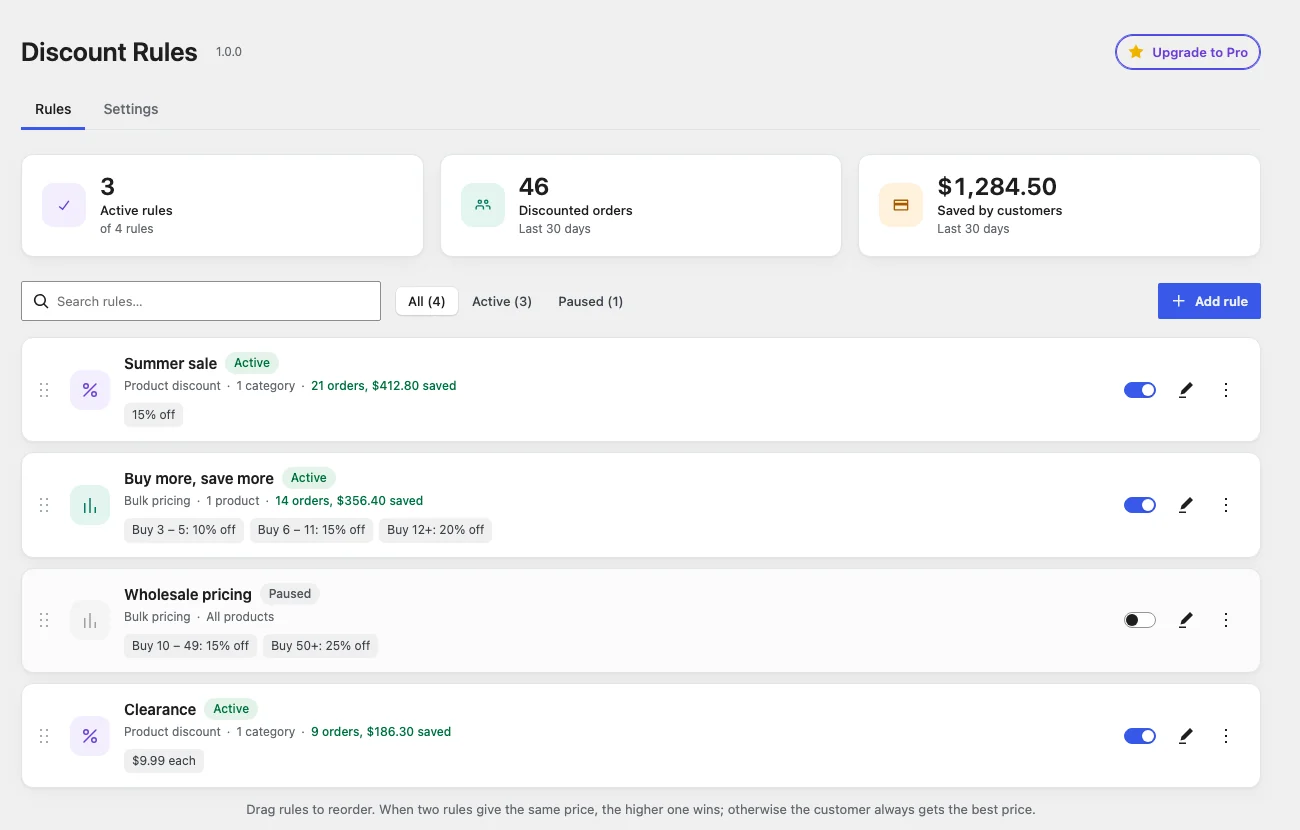
Go to WooCommerce → Discount Rules. On a new site the list is empty. Click Add rule.
2. Pick a template
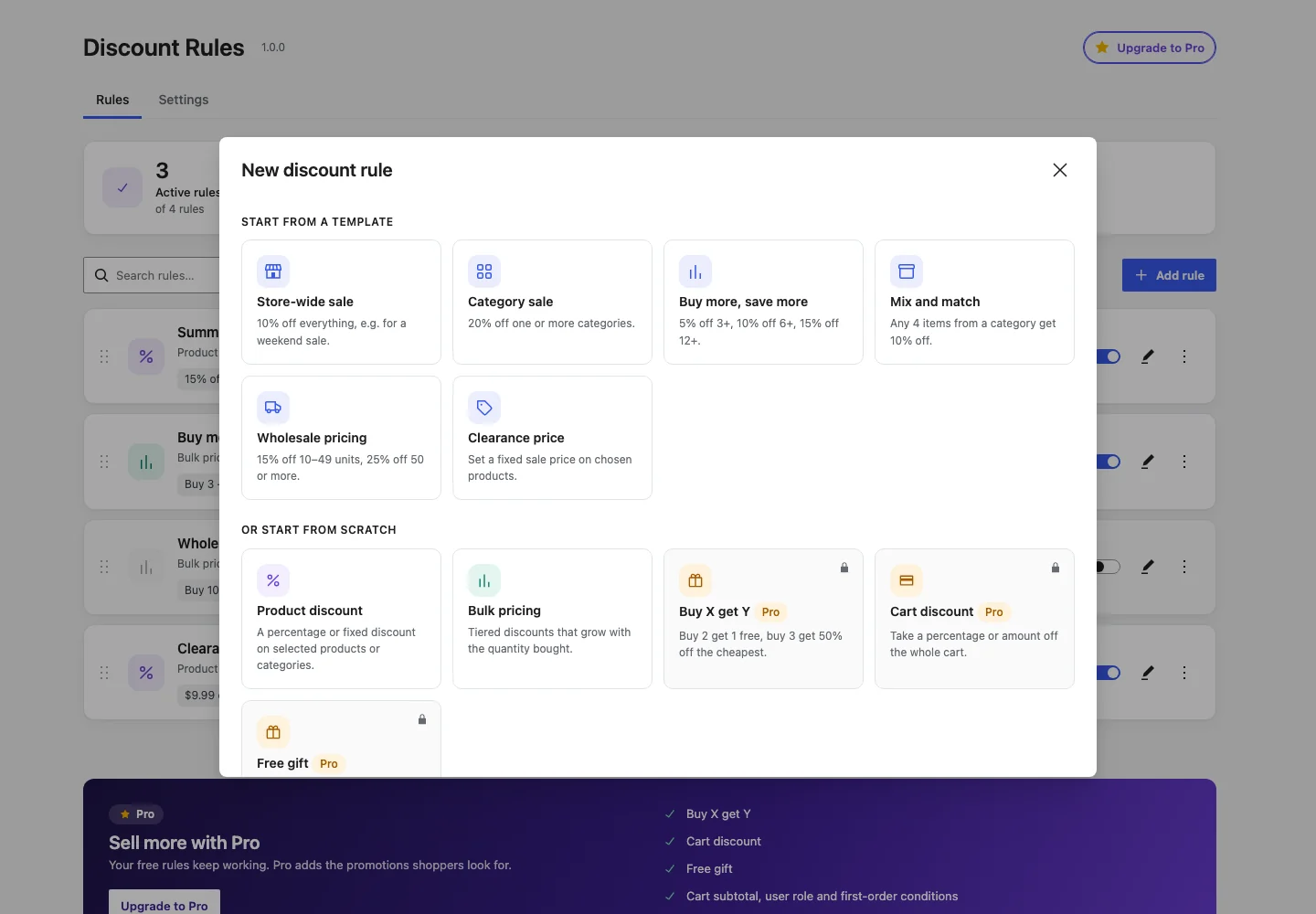
The New discount rule window offers ready-made templates and blank rule types. Choose Buy more, save more.
3. Choose the products
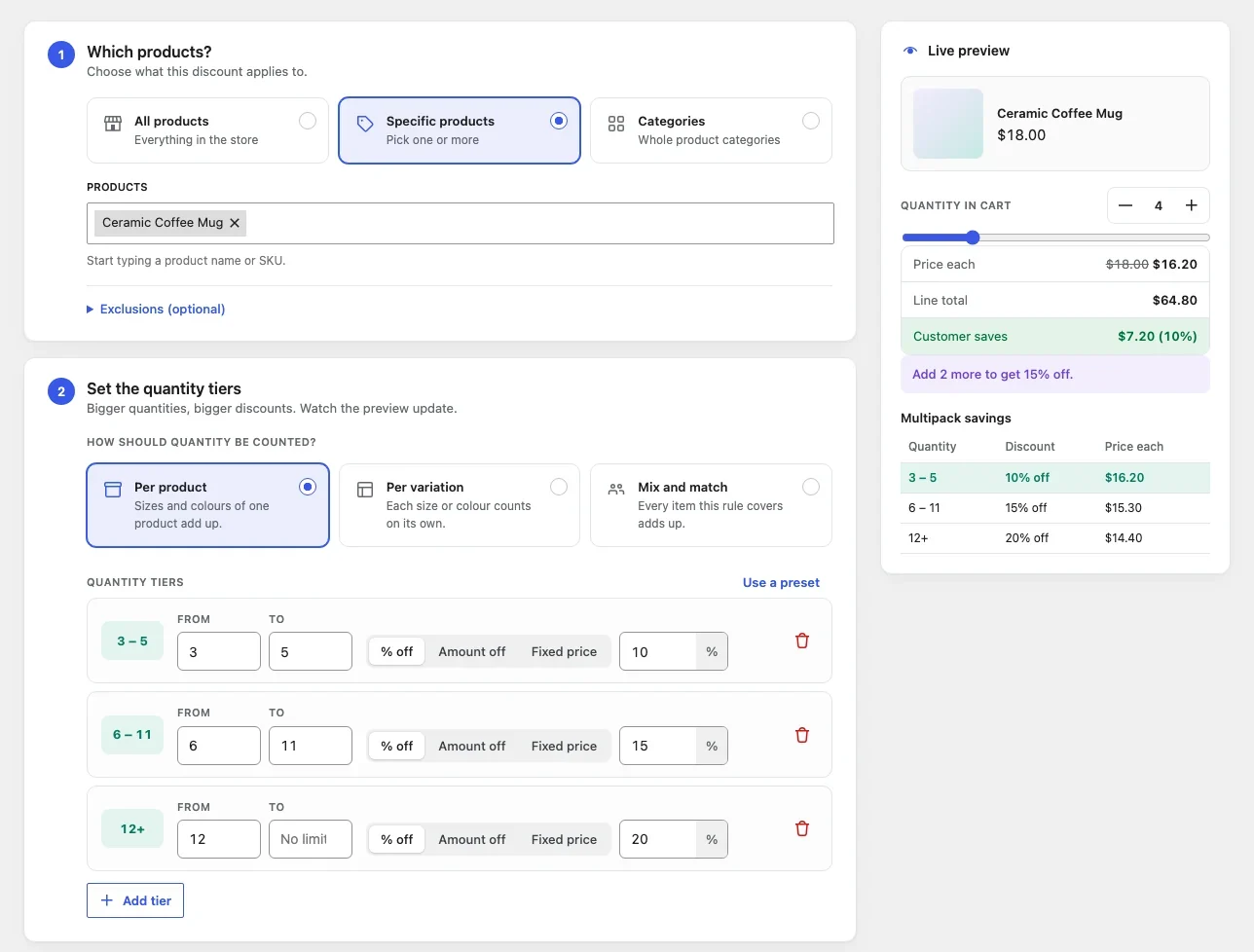
Under 1. Which products? keep All products, or choose Specific products or Categories and start typing a name.
4. Check the tiers and the preview
Under 2. Set the quantity tiers you will see three tiers already filled in. Use the Live preview on the right: move the quantity slider and watch the price each, the line total and the customer’s saving change.
5. Create the rule
Give the rule a name (only you see it) and click Create rule, or press Ctrl/⌘ + S. The rule is active straight away.
6. See it in your shop
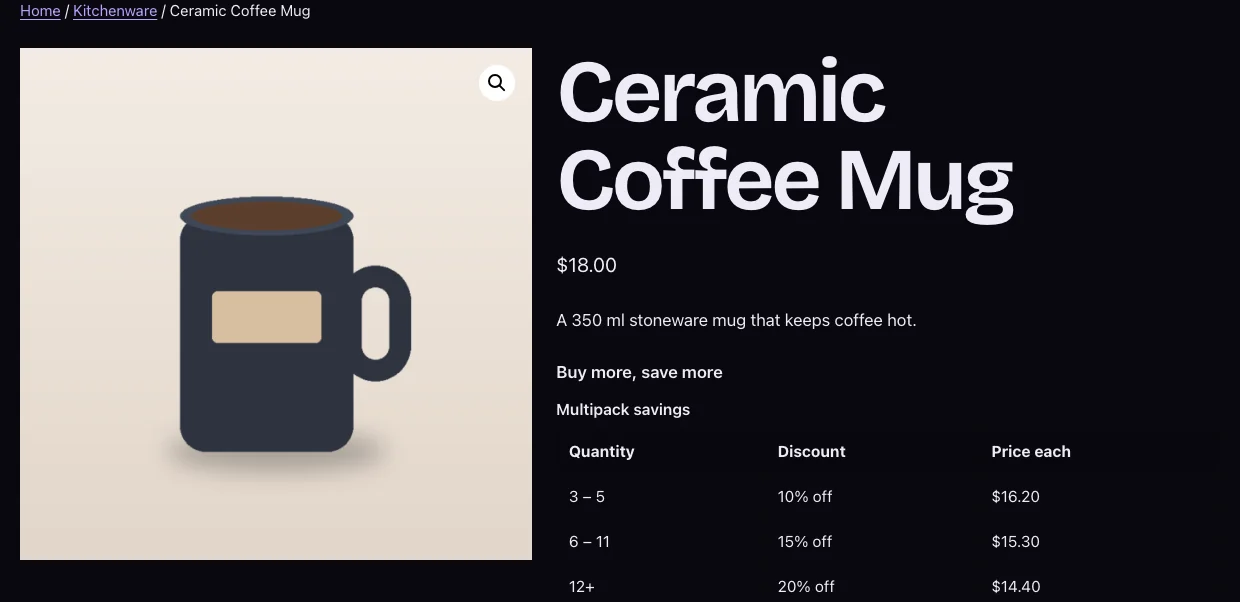
Open a product the rule covers. A quantity pricing table shows the tiers, and the row matching the quantity box lights up as shoppers change it. Add a few to the cart and the discounted price appears there too.
Next: Read Creating and editing rules for everything the editor can do, or jump to Bulk and tiered pricing.