Pro feature. Requires Kayce Discount Rules Pro. See Free vs Pro.
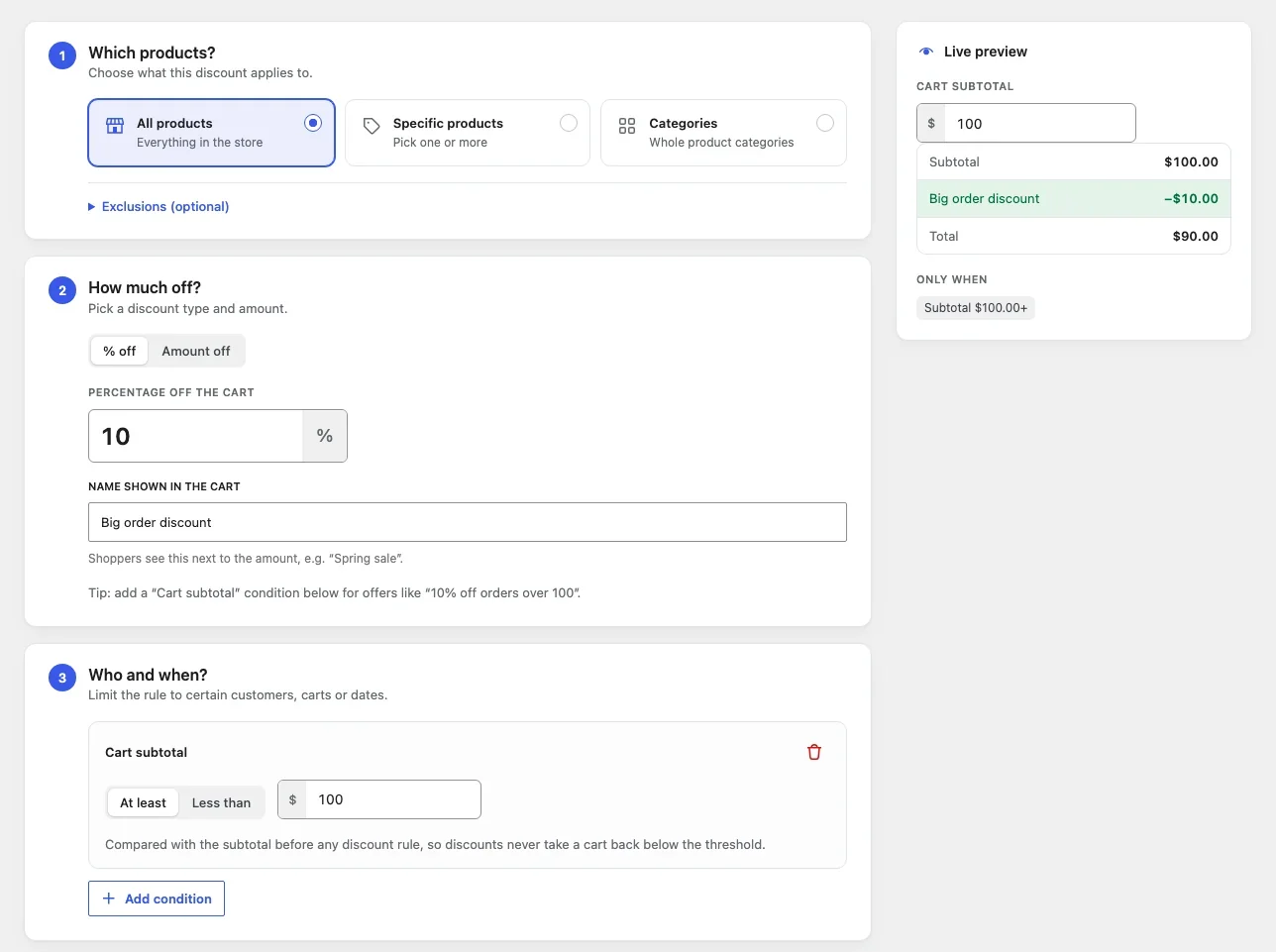
Settings
- % off or Amount off, and the value.
- Name shown in the cart: the label next to the amount, such as “Big order discount”. Defaults to “Discount”.
What it is worked out on
The discount is a share of the items the rule covers (step 1), after their item discounts. With “All products” that is the whole cart. An amount off is capped at the value of the covered items.
Unlock it with a condition
Most cart discounts depend on a threshold. Add a Cart subtotal condition of “At least 100” for “10% off orders over $100”. See Conditions.
In the cart
The discount appears as its own line in the cart and checkout totals, for example “Big order discount −$8.40”, and on the order. It’s a WooCommerce fee line with a negative amount, so it works with the Cart and Checkout blocks and appears on invoices.
Taxes: When taxes are on, WooCommerce spreads the discount across the cart’s tax rates so tax totals stay correct. Amounts are entered the same way you enter product prices (with or without tax).
Cart discounts and coupons
Cart discounts are separate from coupons: a shopper can use a coupon as well. If you don’t want that, restrict your coupons in WooCommerce.