Open WooCommerce → Discount Rules → Settings. The preview on the right shows a product page with your choices.
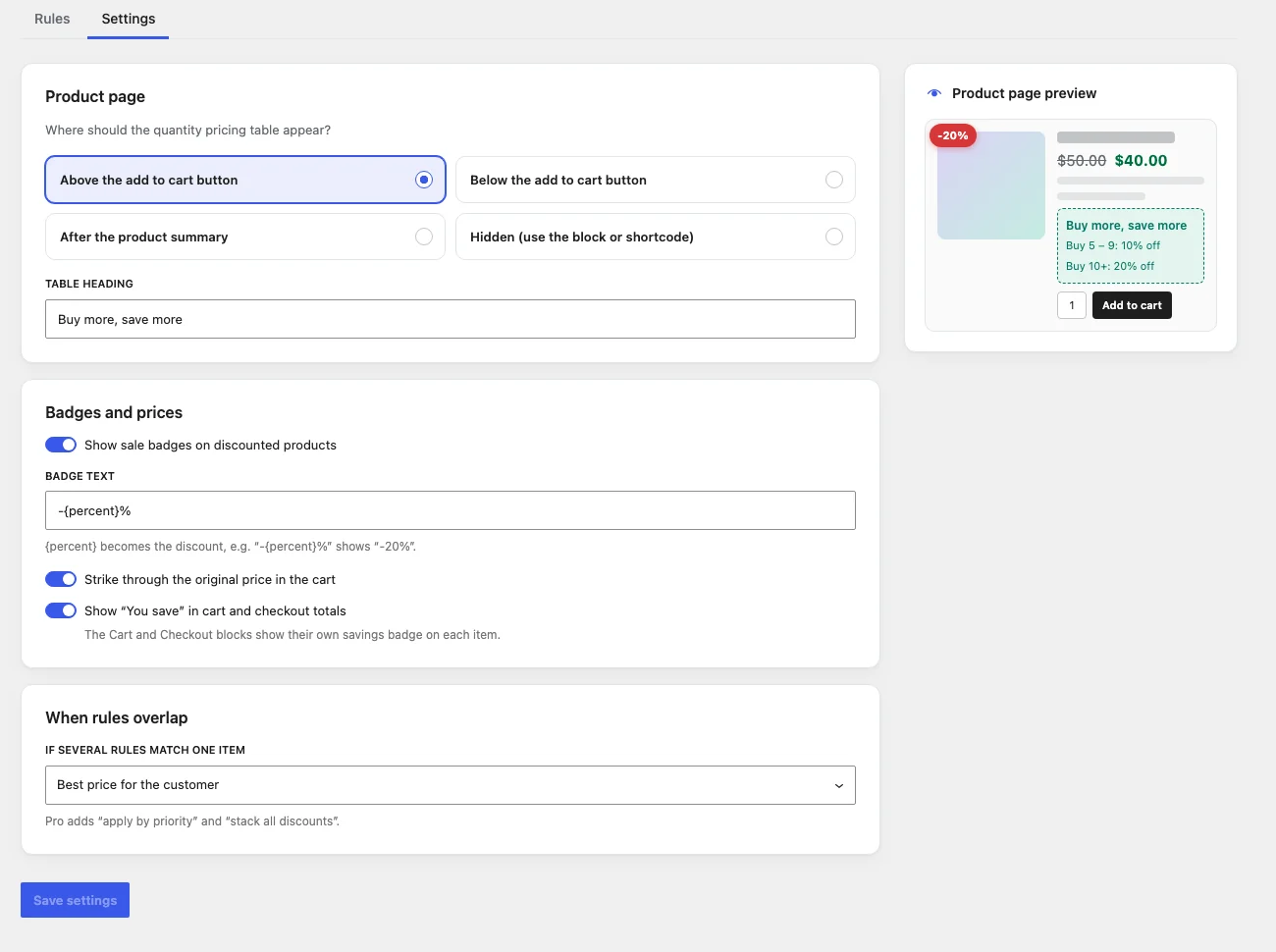
| Setting | Default | What it does |
|---|---|---|
| Quantity pricing table position | Above the add to cart button | Where bulk tables appear on product pages, or hidden. |
| Table heading | Buy more, save more | Heading above pricing tables. |
| Show sale badges on discounted products | On | Products discounted by a rule get the sale badge. |
| Badge text | -{percent}% | Badge text. {percent} becomes the discount, e.g. -20%. |
| Strike through the original price in the cart | On | Classic cart and mini cart show the original unit price struck through. |
| Show “You save” in cart and checkout totals | On | Adds a total-saving row in the classic cart and checkout. |
| If several rules match one item | Best price for the customer | How overlapping rules resolve. Pro adds two options; see When rules overlap. |
Click Save settings, or Discard changes to go back.