Product category pages are often the pages that rank in Google for searches like “linen tote bags” or “organic coffee beans”. But most themes show little more than a title and a grid of products, which gives shoppers and search engines very little to go on.
Adding a short buying guide, an FAQ or a banner to those pages helps both. This guide shows how, using a free plugin called Kayce Sections, without touching your theme files.
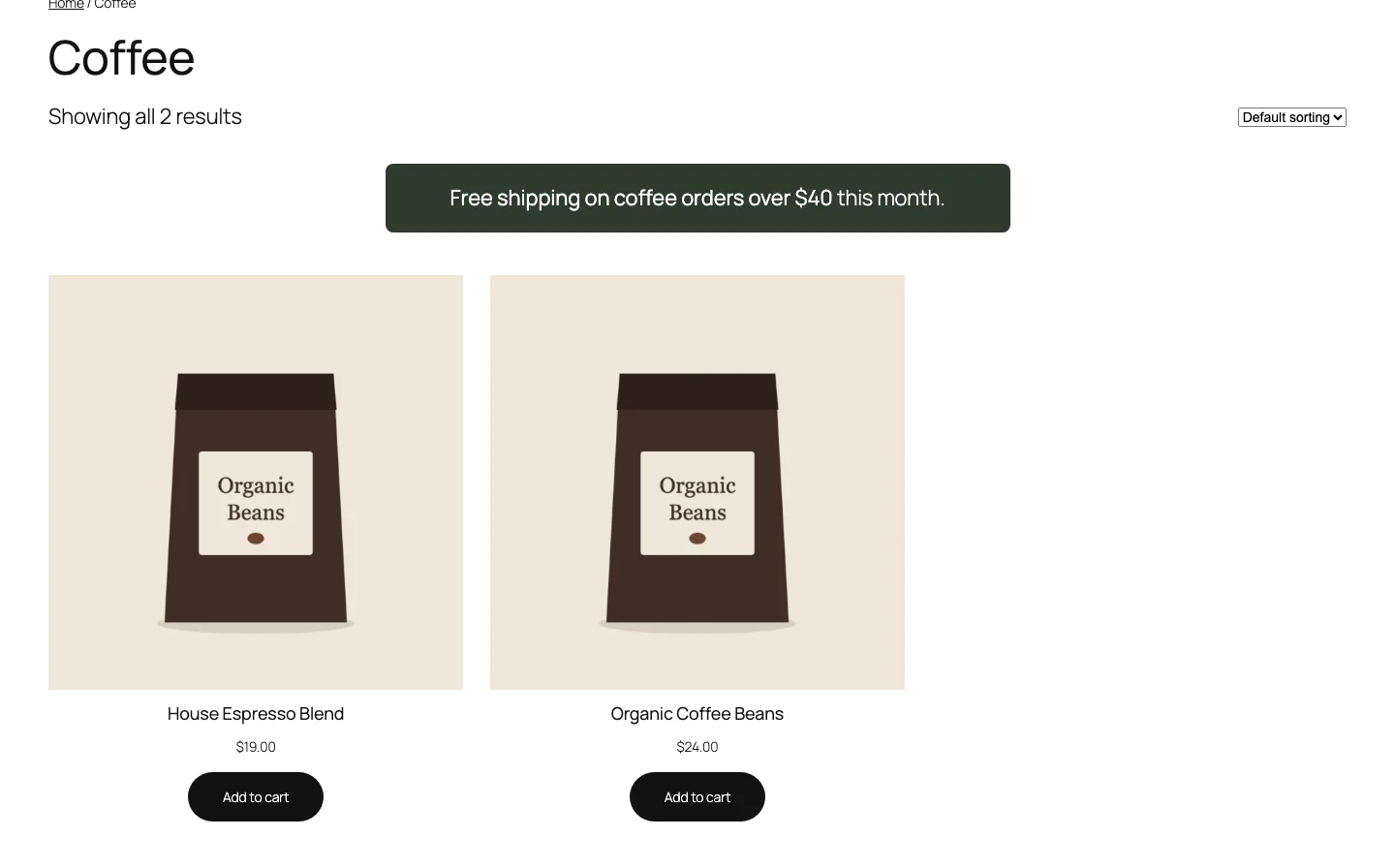
Why not use the category description?
WooCommerce lets you write a description for each category, and that’s fine for a sentence or two. But your theme decides whether it shows and where, usually above the products. It’s also awkward for anything more than text, and you have to edit each category one by one.
Kayce Sections treats each piece of content as its own post. You design it in the block editor or Elementor, choose which category pages it appears on, and put it above or below the products.
Step 1: Install Kayce Sections
- In WordPress, go to Plugins → Add New, search for Kayce Sections, then click Install Now and Activate. You can also download it from WordPress.org.
- Go to Archive Sections → Add New.
Step 2: Write the content
Write your section just like a post. Good things to add to a product category page:
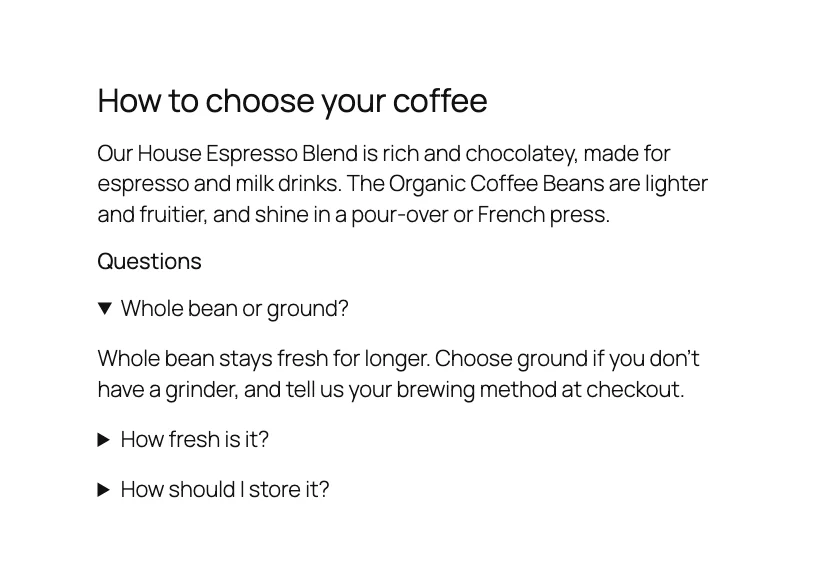
- A short buying guide: how to choose between the products in this category.
- An FAQ: use Details blocks so each answer opens on a click.
- A banner: a sale, free shipping offer or new collection.
- Trust details: delivery times, returns or care instructions.
Step 3: Choose the category pages
In the Archive Section Settings panel, choose a Location:
- Taxonomy archives: pick WooCommerce’s product category taxonomy, listed as Category (product_cat), to show the section on every product category page.
- Specific terms: pick the same taxonomy, then tick only the categories you want, such as “Coffee”. The picker has a search box.
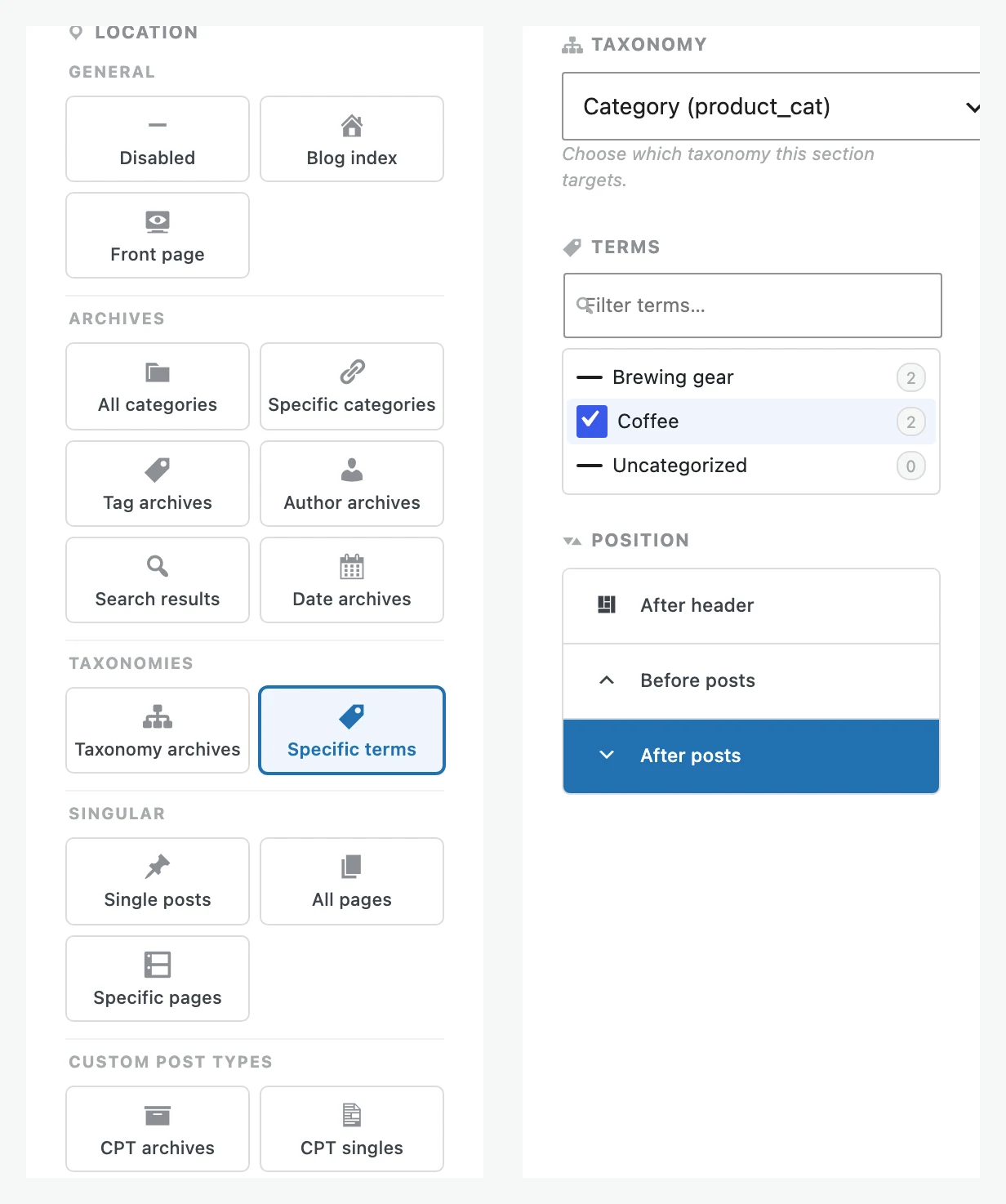
Each section has one location. To show different content on different categories, create one section for each.
Step 4: Above or below the products?
Set the Position to before or after the posts, which on a shop page means above or below the products.
- Above: short banners and offers that shoppers should see first.
- Below: longer text such as buying guides and FAQs, so the products stay at the top.
Step 5: Publish and check
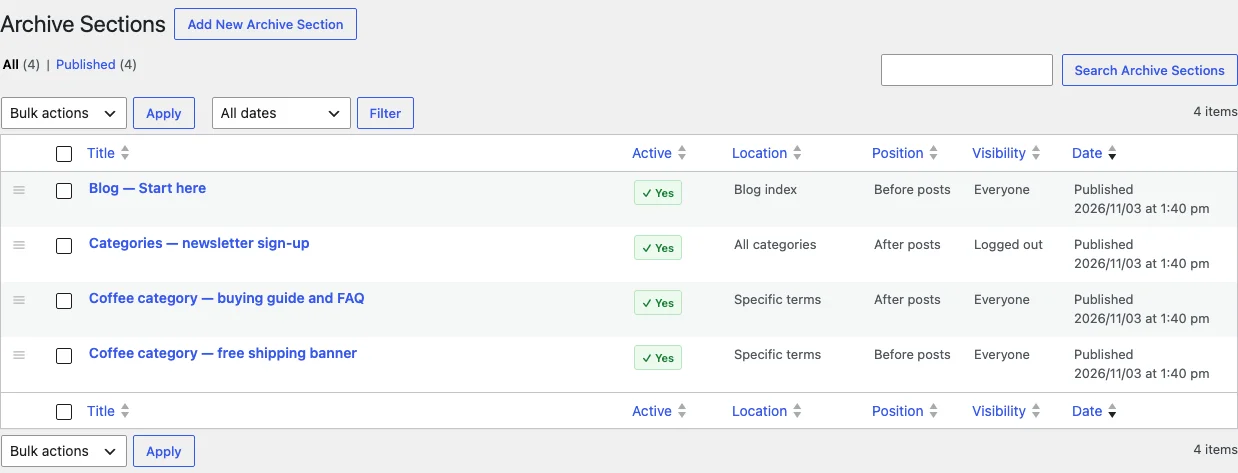
Make sure Active is ticked, click Publish, then open one of the category pages. Use the Preview link in the settings panel to jump straight to a page where the section appears.
Useful extras
- Seasonal content: set From and To dates, and the section hides itself outside them.
- Device targeting: show a long guide on desktop only, or a short banner on mobile only.
- Any theme: it works with classic and block themes, so your content stays when you change theme.
Running a sale on those categories too? See how to schedule a WooCommerce sale that starts and ends on its own.