Your blog page and category archives get plenty of visitors, but most themes give you nowhere to put your own content there. A short “start here” box, a newsletter sign-up or a seasonal banner can turn those visits into readers, subscribers or customers.
This guide uses Kayce Sections, a free plugin, to add them without editing theme files. It’s the plugin that runs the announcement bar at the top of this site.
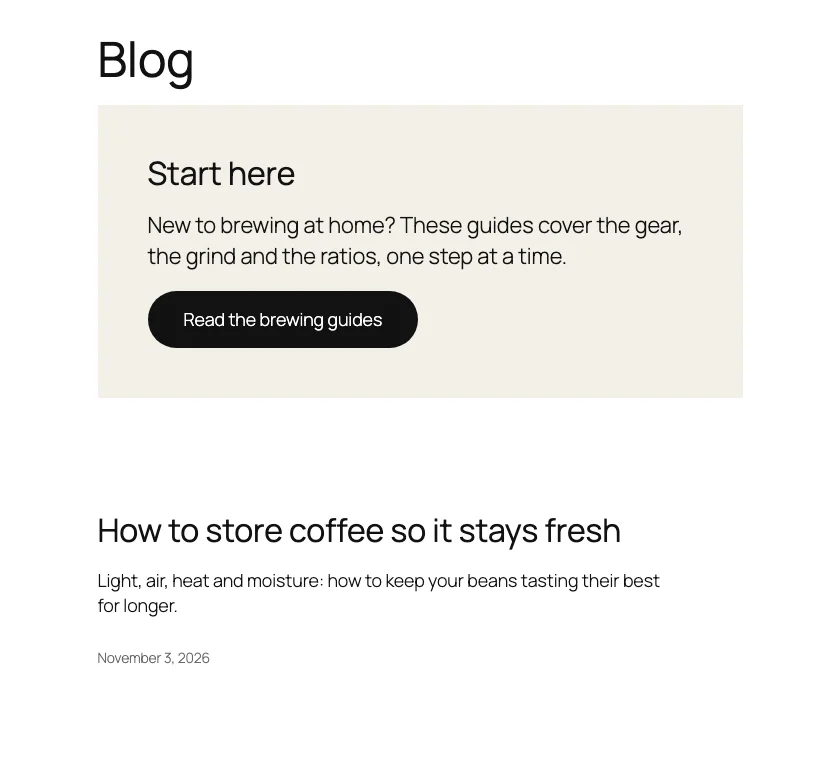
Step 1: Install the plugin and add a section
- Go to Plugins → Add New, search for Kayce Sections, then install and activate it.
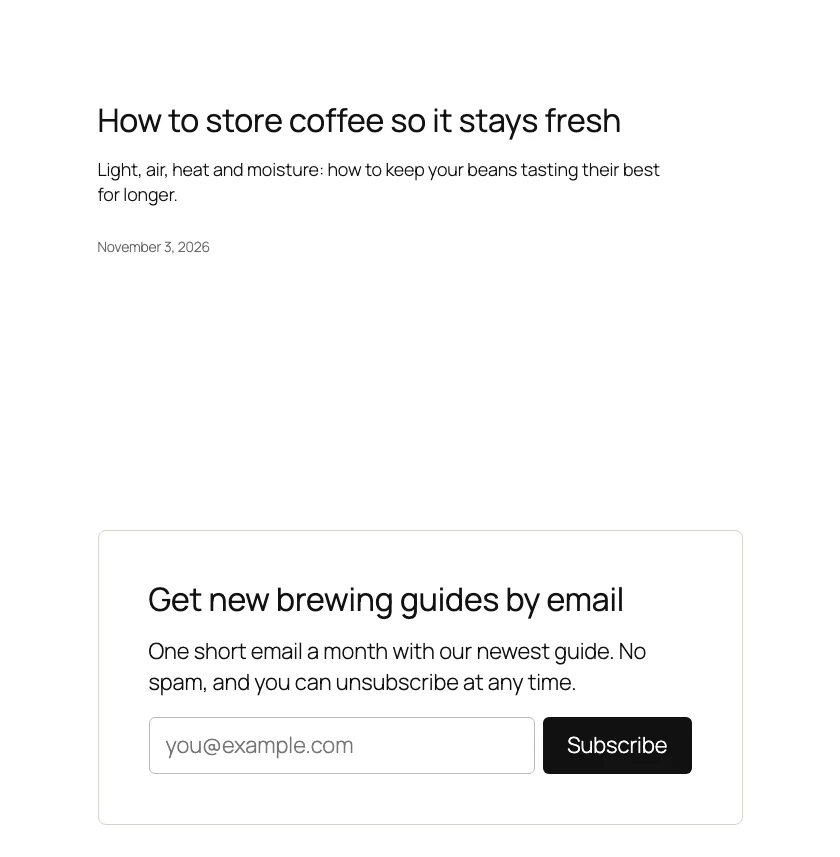
- Go to Archive Sections → Add New and design your banner or sign-up form in the block editor or Elementor. Most newsletter plugins have a block you can drop in.
Step 2: Choose where it appears
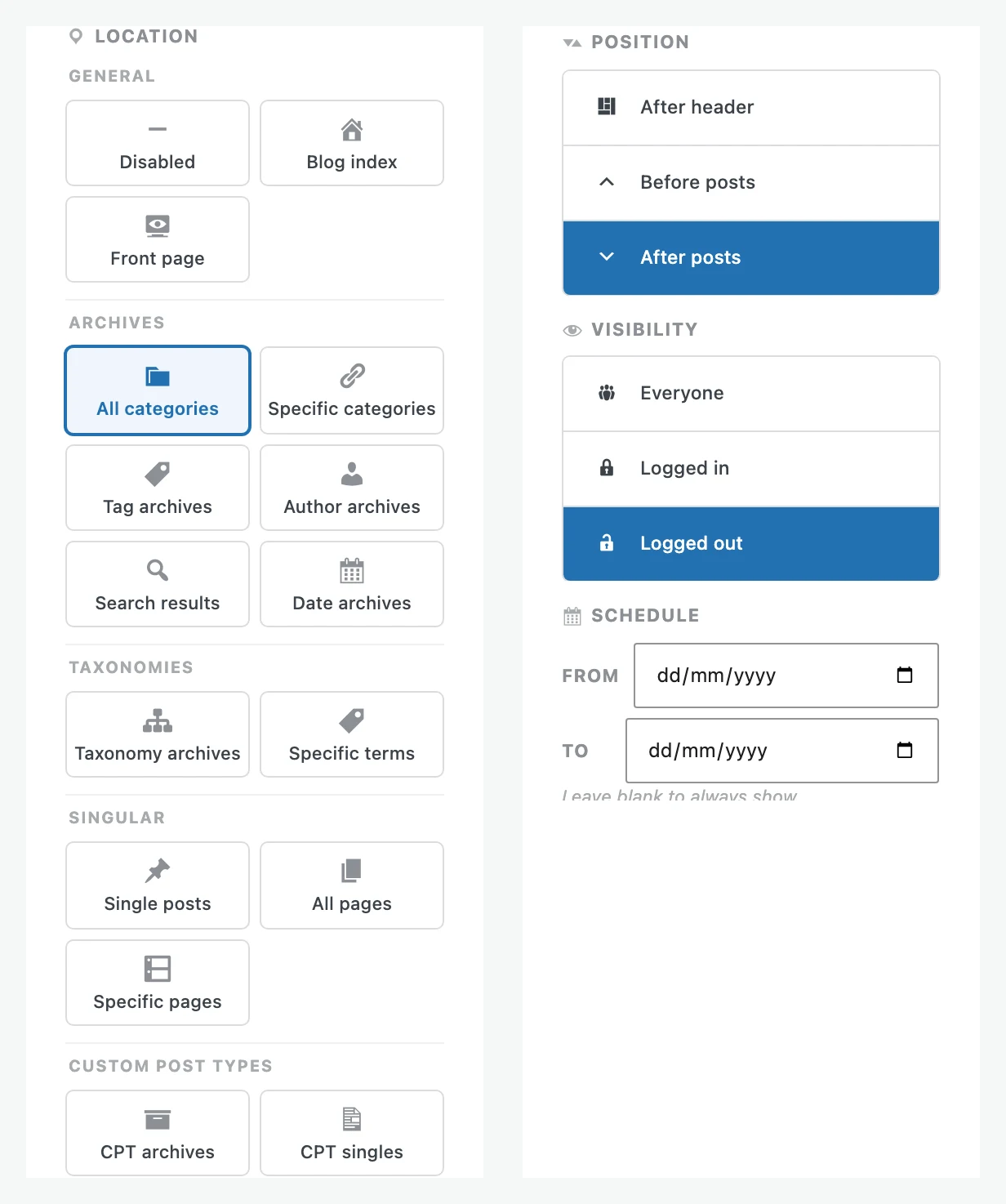
In the Archive Section Settings panel, pick a Location:
| Location | Shows on |
|---|---|
| Blog index | Your posts page |
| All categories | Every category archive |
| Specific categories | Only the categories you tick |
| Tag archives | Every tag archive |
| Search results | The search results page |
| Single posts | Every blog post, before or after the content |
Then set the Position to before or after the posts.
Step 3: Decide who sees it, and when
- Visibility: show a sign-up form to logged-out visitors only, so members aren’t asked again.
- From and To: run a seasonal banner, such as a holiday sale, that disappears on its end date.
- Devices: hide a large banner on mobile, or show a shorter one there instead.
- User roles: show a notice only to members, customers or editors.
Step 4: Publish and manage your sections
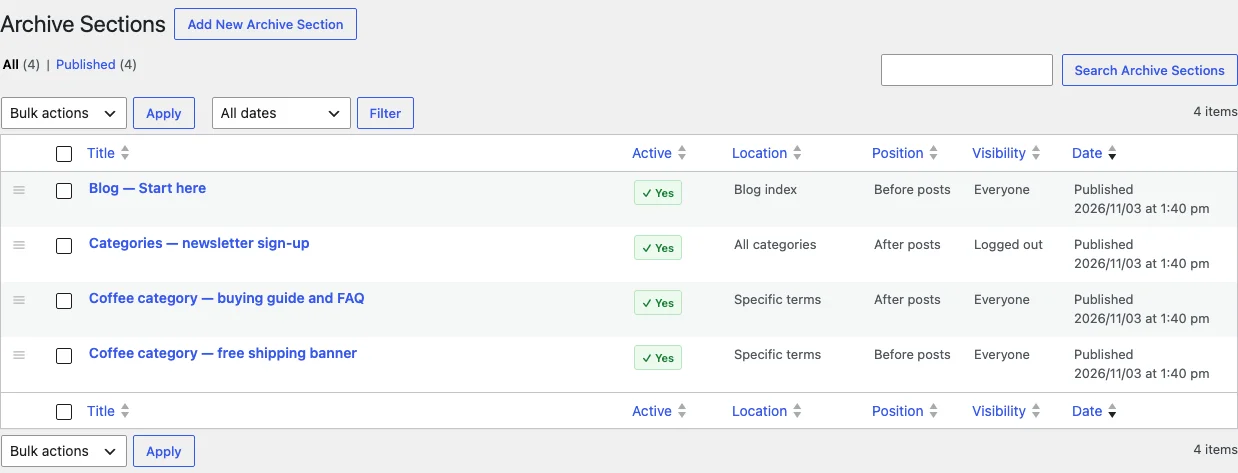
Publish the section and visit the page you chose. All your sections are listed under Archive Sections, with where each one appears and who sees it. Drag them to change the order when several share a page, and untick Active to pause one without deleting it.
Ideas that work well
- A “Start here” box on the blog page that links to your best posts
- A newsletter sign-up after the posts on every category
- A different call to action on each category, matched to its topic
- A seasonal sale banner with an end date
Selling with WooCommerce? See how to add content to WooCommerce category pages.